PowerShell has become one of the most important tools for Windows administrators. Whether you’re managing a handful of computers or thousands of enterprise devices, PowerShell helps you automate repetitive tasks, troubleshoot issues faster, and manage Windows systems more efficiently.
In 2026, PowerShell remains an essential skill for IT professionals, system administrators, cloud engineers, and help desk technicians. With Microsoft’s continued investment in automation, mastering PowerShell can save hours of manual work every week.
In this guide, we’ll explore the most useful PowerShell commands every Windows administrator should know and explain when and why to use them.
Why PowerShell Matters in 2026
Modern IT environments are more complex than ever. Organizations now manage on-premises servers, cloud resources, virtual machines, and remote endpoints simultaneously. Performing these tasks manually isn’t practical.
PowerShell allows administrators to:
- Automate repetitive tasks
- Manage Windows servers remotely
- Generate system reports
- Monitor services and processes
- Configure Active Directory
- Manage Microsoft 365 and Azure
- Troubleshoot systems efficiently
Even administrators who primarily use graphical tools can benefit from learning a few essential PowerShell commands.
1. Get-Help
The first command every administrator should know is:
Get-Help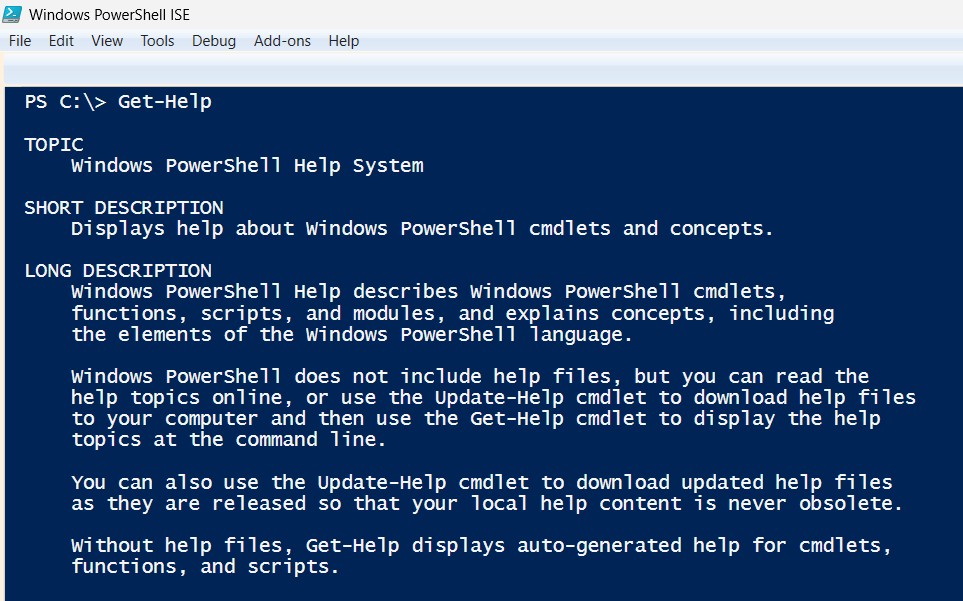
Need help with a specific command?
Get-Help Get-Service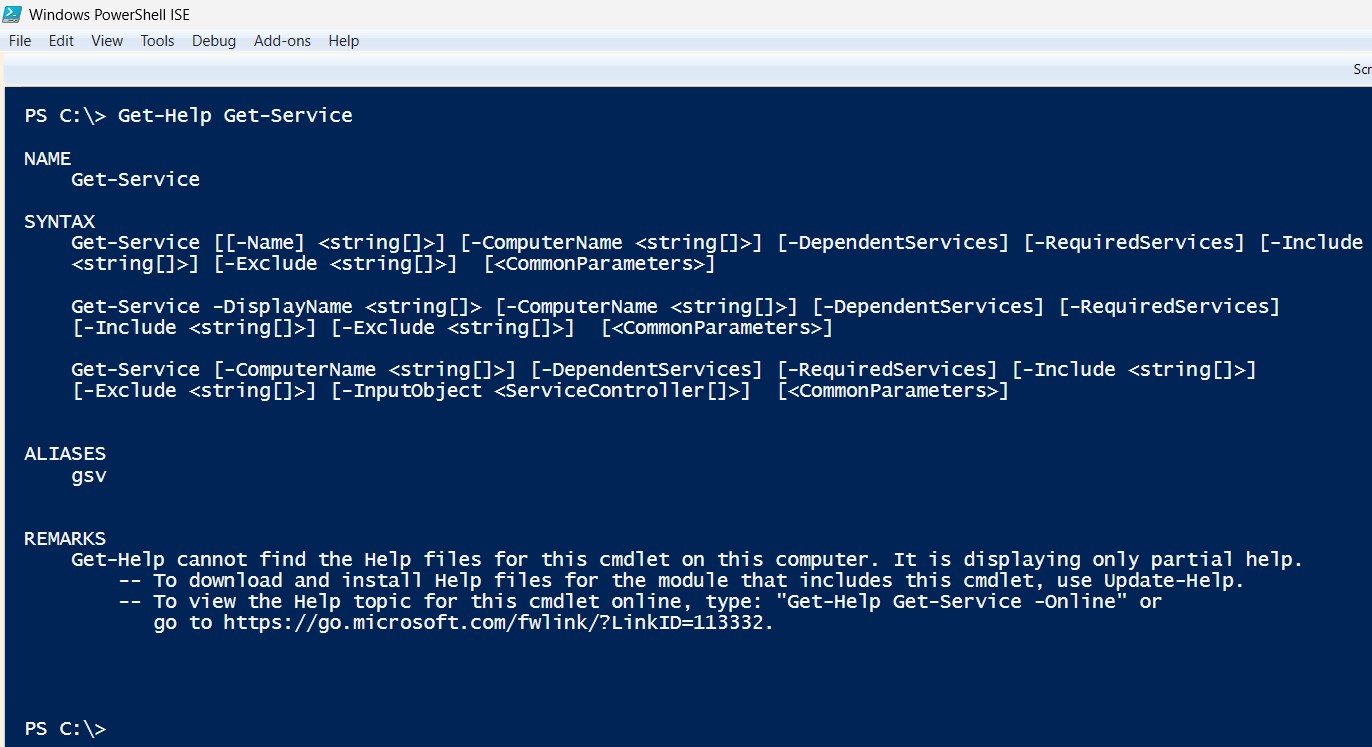
Want detailed documentation?
Get-Help Get-Service -Full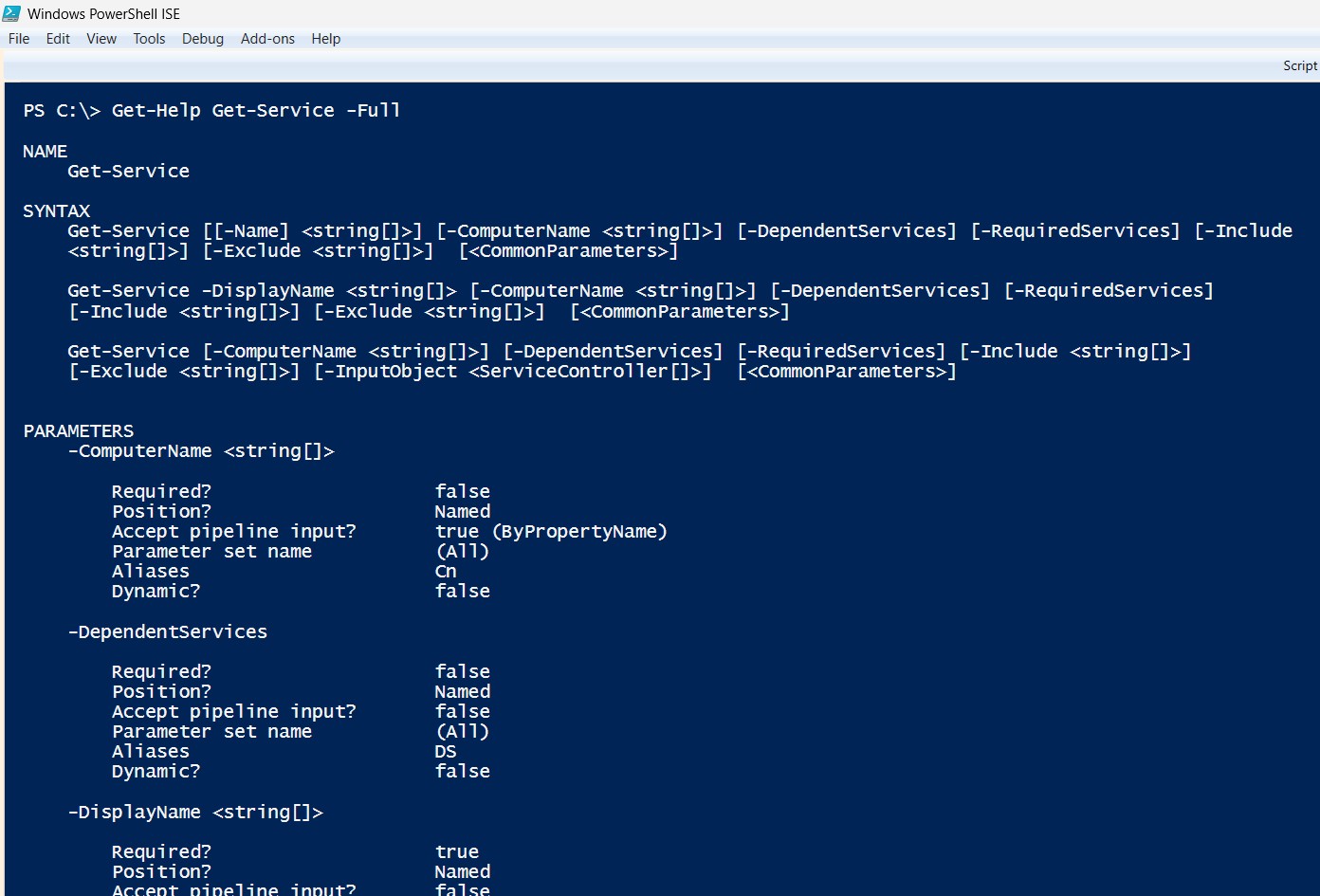
Instead of searching the web every time, PowerShell provides built-in documentation that explains syntax, parameters, and examples.
2. Get-Command
Not sure which command performs a particular task?
Use:
Get-CommandSearch for service-related commands:
Get-Command *service*This command is extremely useful when you’re learning PowerShell or exploring new modules.
3. Get-Service
To display all Windows services:
Get-ServiceCheck a specific service:
Get-Service WinRM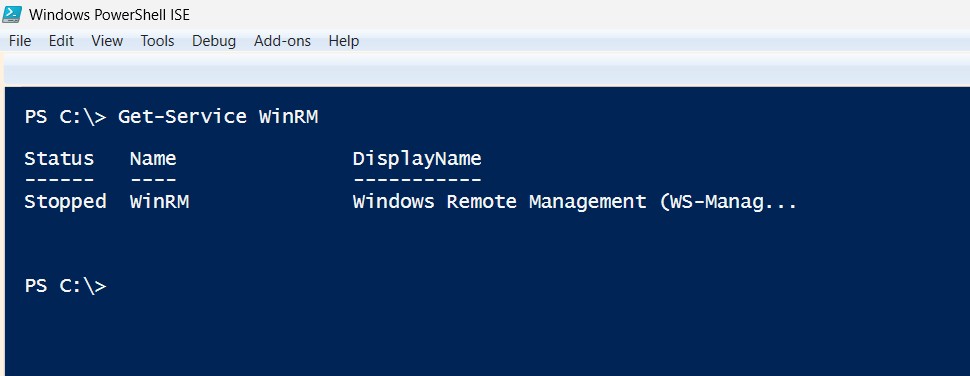
Find stopped services:
Get-Service | Where-Object {$_.Status -eq "Stopped"}Administrators frequently use this command while troubleshooting server issues.
4. Get-Process
View all running processes:
Get-Process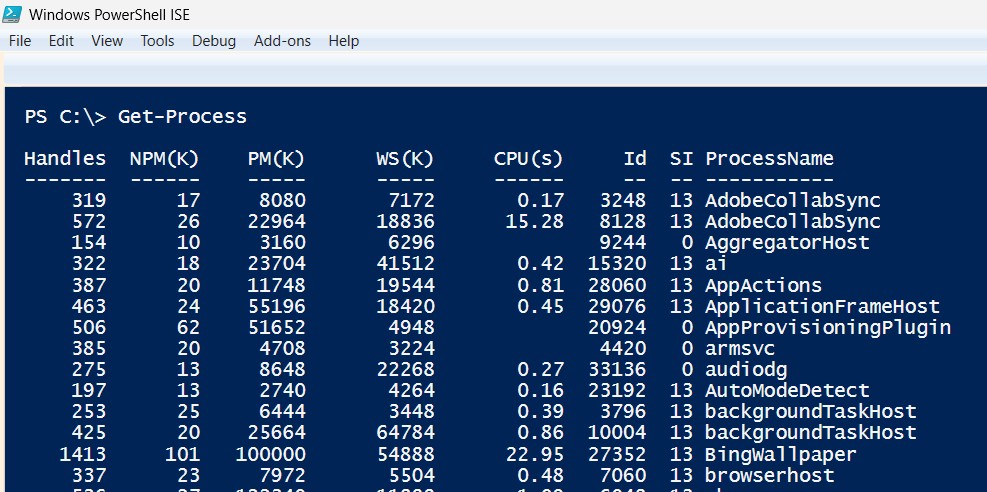
Find Microsoft Edge:
Get-Process msedgeSort processes by CPU usage:
Get-Process | Sort-Object CPU -DescendingThis helps identify applications consuming excessive system resources.
5. Stop-Process
Terminate an unresponsive application:
Stop-Process -Name notepadOr by Process ID:
Stop-Process -Id 2456Always verify the process before stopping it, especially on production servers.
6. Get-ComputerInfo
Need detailed information about a computer?
Get-ComputerInfoYou’ll see:
- Windows version
- BIOS details
- Manufacturer
- RAM
- Processor
- Operating System information
This command is excellent for system inventory and troubleshooting.
7. Test-Connection
Instead of opening Command Prompt for a ping test:
Test-Connection google.comCheck multiple devices:
Test-Connection Server01,Server02This is especially useful when verifying connectivity across multiple systems.
8. Get-EventLog
View recent System logs:
Get-EventLog SystemView the newest entries:
Get-EventLog System -Newest 20Checking event logs through PowerShell is much faster than manually navigating Event Viewer.
9. Restart-Service
Restart a Windows service:
Restart-Service SpoolerThis command is commonly used when fixing printing issues or restarting application services without rebooting the server.
10. Get-ChildItem
Think of this as the PowerShell equivalent of the dir command.
List files:
Get-ChildItemView another folder:
Get-ChildItem C:\LogsInclude hidden files:
Get-ChildItem -Force11. Copy-Item
Copy files:
Copy-Item report.txt D:\BackupCopy an entire folder:
Copy-Item C:\Data D:\Backup -RecursePerfect for backup scripts and file management tasks.
12. Remove-Item
Delete files:
Remove-Item old.logDelete folders recursively:
Remove-Item C:\Temp -RecurseUse caution with this command because deleted files may not be recoverable.
13. Get-NetIPAddress
Display IP address information:
Get-NetIPAddressThis replaces several older networking commands and provides more detailed output.
14. Get-Disk
Display storage information:
Get-DiskUseful for checking:
- Disk size
- Health status
- Partition style
- Available drives
15. Get-HotFix
Check installed Windows updates:
Get-HotFixThis command helps administrators verify whether important security patches have been installed.
Best Practices When Using PowerShell
PowerShell is powerful, but it’s important to use it responsibly.
Some best practices include:
- Test scripts in a non-production environment first.
- Run PowerShell with the least privileges necessary.
- Add comments to scripts for easier maintenance.
- Keep PowerShell updated.
- Avoid downloading scripts from unknown sources.
- Back up important data before making large-scale changes.
Following these habits helps reduce mistakes and keeps systems secure.
Frequently Asked Questions
Is PowerShell difficult to learn?
Not at all. Learning a few common commands is enough to automate many daily administrative tasks. As you become comfortable, you can explore scripting and advanced automation.
Is PowerShell still relevant in 2026?
Yes. PowerShell continues to be a core management tool for Windows Server, Microsoft 365, Azure, and many enterprise environments. It remains a valuable skill for IT professionals.
Can PowerShell replace the Command Prompt?
For most administrative tasks, yes. PowerShell provides far more functionality, supports scripting, and works with objects instead of plain text.
Do I need PowerShell for cloud administration?
Absolutely. Many cloud services, including Microsoft Azure and Microsoft 365, offer PowerShell modules that allow administrators to automate management tasks efficiently.
Final Thoughts
PowerShell has transformed the way Windows administrators manage systems. By learning these essential commands, you can automate repetitive tasks, troubleshoot problems more efficiently, and improve your overall productivity.
Start by practicing one or two commands each day. Over time, you’ll become more confident and discover new ways to simplify your daily work. Whether you’re managing a single Windows PC or an enterprise infrastructure, PowerShell is a skill that will continue to pay dividends throughout your IT career.
Quick Recap
- Learn Get-Help and Get-Command first.
- Use Get-Service, Get-Process, and Restart-Service for daily administration.
- Manage files with Get-ChildItem, Copy-Item, and Remove-Item.
- Check networking using Test-Connection and Get-NetIPAddress.
- Review updates with Get-HotFix.
- Practice regularly to become more efficient and confident.
Did you find this guide helpful? Bookmark it for future reference, and explore more Windows administration tutorials on our blog to continue building your PowerShell expertise.